 Skip to content
Turn Your Vision into Success, Let It Fly with Us
Ensure Your Business Is Secure, Compliant & IT-Ready
Home Office
Table of Contents
Executive Summary
- As remote workers, you will become responsible for your company’s security.
- The majority of security breaches occur as a result of human error as opposed to hacking.
- Where you get your internet, how you use your laptop, and how you access your email all contribute to your overall security posture.
- The use of cloud tools is a useful addition; they are not a solution that provides all aspects of protection.
- Phishing emails are the number one daily risk for any employee.
- Some basic daily habits can assist in the prevention of catastrophic security breaches.
- If a security incident occurs, report it immediately. We all make mistakes.
- This document will provide you the information necessary to report any security incident in a manner that is both direct and to the point.
Who this guide is for
This guide is designed for:
- Employees in the UK that are working from home or hybrid
- Employees using either company or personal devices
- Those with no background in technology and require straightforward instructions
- Anyone that is unfamiliar with “secure working”
One-Page: Home Office Security Basics
Do this:
- Use a strong password for your home Wi-Fi,
- Lock your screen when you leave the room,
- Keep all of your devices up-to-date,
- Enable Multi-Factor Authentication (MFA),
- Notify someone immediately about any suspicious emails.
Avoid this:
- Share your work device with your family,
- Use the same password on multiple sites,
- Save work data to a USB device,
- Click on a link that you were not expecting,
- Disregard security warnings because you think they are “minor”.
If you’re ever in doubt, please contact your IT department or your manager prior to making any assumptions.
1) Home Wi-Fi Security
Why it matters
The Wi-Fi that your home has in it connects your work devices to the outside world. The W-Fi you use as your gateway has to be secure. If the Wi-Fi is not secure, then anything that is connected to it can be compromised.
What To Do
- Change the router’s default password to something secure
- Make sure that you use either WPA2 or WPA3 security on your router (as most routers that are more recent than 2015 are using WPA2 or WPA3).
- Keep the router firmware updated or set to automatically update.
- Have a separate guest Wi-Fi for visitors.
What NOT To Do
- Leave your router configured with the default settings.
- Give out your main Wi-Fi password to everyone.
- Use Public Wi-Fi for work without asking permission.
Example:
If the password for your router is still “admin123”, you should be changing it to something more secure.
2) Devices & Updates
Why it matters
Updating devices will fix any security vulnerabilities in the device. Not updating your devices allows an attacker to exploit those security holes.
What To Do
- Use a Work Device whenever possible,
- Enable Automatic Updates,
- Restart devices after Any Updates,
- Keep Antivirus Software enabled if your organisation has provided this to you.
What NOT To Do
- Wait weeks to update,
- Install unfamiliar programs on your Work Device,
- Use Your Family’s Shared Devices for Work.
If you’re not sure:
If your organisation has not approved a device, do not use it.
3) Passwords & MFA
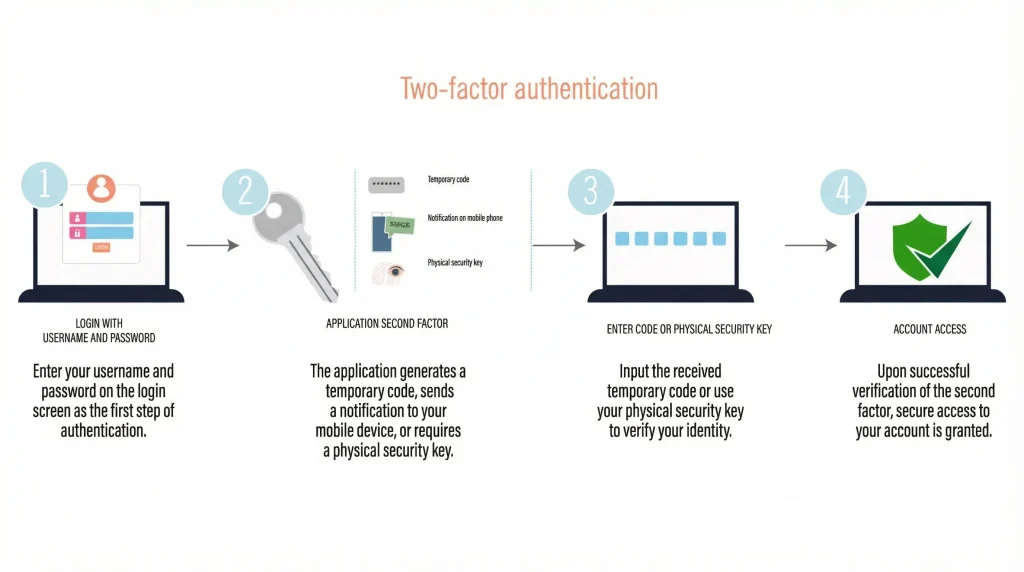
Why it matters
Passwords by themselves aren’t sufficient any longer.
What To Do
- If approved use a Password Manager
- Whenever you can enable MFA
- Use unique passwords for systems at work.
What NOT To Do
- Utilizing a password that you previously used on your personal account
- Storing a password in your notes or browsers without being approved
- Sending passwords through e-mail or chat
Example:
If someone obtains your password to a shopping website, the likelihood is that they will gain access to your work e-mail as well, since you probably reused your shopping site password on the work e-mail.
4) Email & Phishing Awareness
Why it matters
Phishing constitutes 70% of all breaches against entities.
What To Do
- Do not click on links immediately
- Make sure you know who sent you an email
- Report any suspicious emails (even if you are not sure)
What NOT To Do
- Click on “urgent” links related to an account problem
- Download any unexpected email attachments
- Be embarrassed about reporting a phishing attempt.
If you do accidentally click on a phishing email, please report it immediately. Early reporting mitigates potential harm.
5) Data Handling & Storage
Why it matters
Company data (files, information) is handled by the company; and may have personal or confidential information.
What To Do
- Use the correct share/secure locations when saving files
- Utilize the correct company cloud tools to complete tasks using files
- Always lock your workstation when stepping away from the desk
What NOT To Do
- Store company files on USB drives
- Send personal emails with company documents attached
- Store company data on family computers that are not managed or owned by the company.
6) Physical Security
Why it matters
Security threats don’t just exist online.
What To Do
- Lock screens when stepping away
- Keep devices out of sight
- Be cautious in cafés and trains
What NOT To Do
- Never leave a laptop unattended
- Avoid working on sensitive information in public places
7) What To Do If Something Goes Wrong
Why it matters
When you act quickly, you can minimise the damage from the problem.
What To Do
- Immediately Inform IT Department and/or Supervisors regarding the problem
- Immediately Disconnect from the Internet as Instructed.
- Remain Calm & Follow All Provided Instructions Exactly as Received.
What NOT To Do
- Try to resolve the problem independently.
- Hide the mistake from others.
- Hesitate to report the mistake.
Mistakes occur. Reporting issues quickly aids others as well.
Common Mistakes Employees Make
- Some employees think that all their data is “backed up” in a cloud service.
- Reusing personal passwords for work
- Some employees fail to update their systems regularly by not paying attention to alerts regarding security updates.
- Not reporting near-miss incidents
- Some employees use their devices in conjunction with their family members.
FAQs
Typically, yes, provided that it has been updated and secured with a password.
Only if your manager approves of this arrangement.
Do not panic; contact your supervisor immediately.
No, all work devices are for business purposes only.
Only if you were issued software from your employer or if your employer requires the use of antivirus software.
It is better to report any mistake you made as quickly as possible, rather than keep quiet about them.
About This Guide
The Computer Support Centre created this guide to give UK workers in both home and hybrid jobs (partially remote, partially in office) guidance for protecting their personal and company data via their desktop or laptop computer at home as well as informing them how they can contribute to an organisation’s overall security framework (policies) by providing safe, practical, and actionable home office security tips. There is no technical jargon, or “finger pointing,” and instead provides concrete examples of what employees can do each day to help prevent many security incidents, such as data loss, phishing threats, and greater exposure to other cyber vulnerabilities.
Conclusion
Home Office Security is about creating good, safe habits and not necessarily about being a technical guru. By implementing the practices outlined in this guide, employees should be able to greatly reduce the number of incidents caused by email phishing, human error, and other cyber-attacks while working from home, as well as decreasing the potential risk and exposure to their own personal data and that of their employer while doing so. Simple daily actions, which are done multiple times, can help keep both an employee’s personal information and company data safe.