
Turn Your Vision into Success, Let It Fly with Us
Ensure Your Business Is Secure, Compliant & IT-Ready
Remote Working IT Checklist for UK Businesses
Table of Contents
Executive Summary
- This checklist provides a secure remote working blueprint for UK SMEs with 5–200 staff, focusing on hybrid or fully remote setups.
- Flexible working on a remote basis brings added flexibility but also increases the amount of IT and security risk.
- Companies in the UK have a responsibility for protecting data and ensuring it is available, even when their workforce is working from home.
- Secure remote working does not require complex systems, it requires clear standards and consistency.
- Issues related to Identity Security (Account Security, MFA, Access Control) are of greater importance than the location from which one is working.
- Home and public Wi-Fi are two of the weak points commonly left unprotected by an organisation.
- Backup and device encryption are two vital elements in ensuring the business has remote resilience.
- A minimum secure environment for remote work can be achieved in approximately 30 days.
- The accompanying checklist clearly distinguishes between the most important controls to address and what would be considered as additional improvements to make.
Remote Working IT Checklist
A secure remote working framework for UK SMEs
Data Protection
Clear responsibility for company dataSecure Remote Working
Central security controlsRemote Resilience
Always-on access & availabilityIdentity Security
MFA & access controlsWeak Points
Identify and reduce risksBackup & Encryption
Protect data and devicesWho This Checklist Is For
- This document is intended for small and medium-sized enterprises(MSMEs) operating out of the UK with:
- Completely remote workforces.
- A hybrid work environment including both office and remote workers.
- People who work from their home or while travelling on laptops.
- Non-technical owners and directors, HR and operations managers, as well as junior IT administrators and admin support personnel.
What Problems This Checklist Solves
1. Devices and security standards being inconsistent.
2. Work-from-home creates a higher degree of Cyber-attack risk.
3. Lack of clarity regarding who is responsible for the loss or theft of devices.
4. Data is scattered all over half-managed personal or uncontrolled locations.
5. Limited visibility of incidents.
6. A heavy reliance on trust without appropriate control in place.
1. Devices & Hardware
Remote devices are now an integral element of your business IT infrastructure. Outdated or inferior hardware increases the risk of downtime, the potential for security breaches, and support challenges.
| Item | Minimum | Better | Best Practice | Owner | Frequency | Notes |
|---|---|---|---|---|---|---|
| Work device | Any laptop | Company-approved models | Standardised models | IT / Ops | On issue | Avoid desktops |
| Replacement cycle | Ad-hoc | 4–5 years | 3–4 years | IT | Review annually | Budget predictability |
| Specs | Basic | Standardised | Role-based | IT | On purchase | Avoid false economy |
Common Pitfalls
- Allowing employees to use old personal devices
- No standard specifications for the type of work or devices
- Having mixed unsupported OS platforms
Quick Wins
- Define minimum specifications for a Laptop PC
- Stop using Desktops for remote positions
- Take inventory of all devices assigned to employees
2. Identity & Access
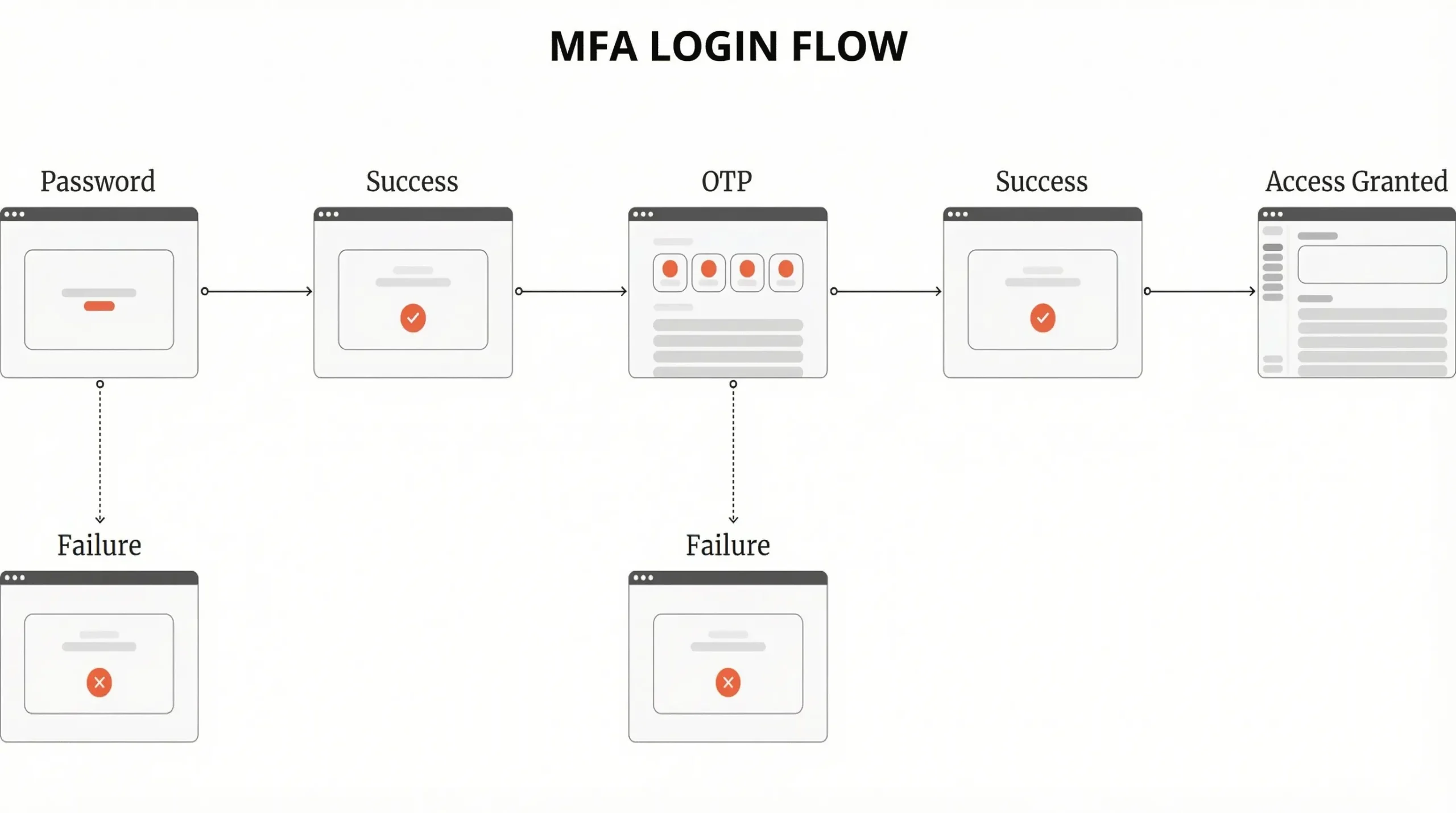
Most breaches occur via a compromised account, not through a hacked device.
| Item | Minimum | Better | Best Practice | Owner | Frequency | Notes |
|---|---|---|---|---|---|---|
| User accounts | Named users | Central directory | Lifecycle automation | IT | On change | No sharing |
| MFA | Optional | All users | Risk-based | IT | Continuous | Essential |
| Admin rights | Shared | Separate admin | Least privilege | IT | Quarterly | Major risk reducer |
Common Pitfalls
- Using shared Administrator accounts
- Only using MFA for Administrator accounts
- Not having a proper process for off-boarding departed employees
Quick Wins
- Implement MFA for email access
- Eliminate local Admin rights
- Periodically review the User list for accuracy
3. Device Security
Common remote work risks include Lost or Stolen Laptop Computers.
| Item | Minimum | Better | Best Practice | Owner | Frequency | Notes |
|---|---|---|---|---|---|---|
| Encryption | Recommended | Enabled | Enforced | IT | On setup | GDPR expectation |
| Antivirus | Built-in | Managed AV | EDR | IT | Ongoing | Proportional |
| Patching | Manual | Auto | Monitored | IT | Monthly | Patch fast |
Common Pitfalls
- Laptops do Not have encryption
- Updates are delayed
- Devices cannot be tracked
Quick Wins
- Use BitLocker/FileVault Encryption
- Ensure Computer is set to automatically update itself
- Record Serial Numbers of your Laptop(s)
4. Home & Public Wi-Fi
Residential Internet connection(s) have varying levels of Security. Public Wi-Fi is inherently untrustworthy.
| Item | Minimum | Better | Best Practice | Owner | Frequency | Notes |
|---|---|---|---|---|---|---|
| Home Wi-Fi | WPA2+ | Router guidance | ISP-grade routers | Staff / IT | Annual | Education matters |
| Public Wi-Fi | Allowed cautiously | VPN guidance | Restricted use | IT | Ongoing | Risk-based |
| Shared housing | Awareness | Policy guidance | Device hardening | HR / IT | Annual | Common risk |
Common Pitfalls
- “Free Wi-Fi at Café’s”
- Router Firmware is older than Most Users
- Same Computer being used by Multiple Family Members
Quick Wins
- Create and Publish Wi-Fi Safety Guidelines
- Prohibit use of any Public Wi-Fi Network without Protection.
5. Connectivity & Remote Access
A Secure Connection protects against Interceptions, There is no trust in the Cloud or Legacy VPN Systems; CE provides Scope for Remote Devices.
| Item | Minimum | Better | Best Practice | Owner | Frequency | Notes |
|---|---|---|---|---|---|---|
| VPN | If required | MFA-protected | Zero-trust access | IT | Annual | Not always needed |
| Remote desktop | Limited | MFA | Logged & monitored | IT | Ongoing | High risk |
Common Pitfalls
- Always on VPN slows down Daily Work
- No Back-up solutions for Downtime
- Legacy Authentication Protocols still being used
Quick Wins
- Set Conditional Access for Users
- Test Using the Remote Hotspot
- Audit Users Access
- Turn Off or Disable Legacy Authentication
- Train on the Zero Trust Principles
6. Email & Collaboration Tools
A Phishing attack can occur when you are working remotely, You need to set-up essential tools like M365 to securely share information under the GDPR regulations.
| Item | Minimum | Better | Best Practice | Owner | Frequency | Notes |
|---|---|---|---|---|---|---|
| Platform | Cloud email | Business plan | Advanced protection | IT | Ongoing | Avoid free tiers |
| Phishing protection | Default | Tuned rules | User reporting | IT | Quarterly | People matter |
| File sharing | Links not attachments | Permissions | Expiry controls | IT | Ongoing | Data control |
Common Pitfalls
- Using Personal Emails
- Clicking Links Without Checking
- Open Sharing
Quick Wins
- Activate Advanced Protection Features
- Conduct a Phishing Test
- Set Internal Default Options
- Provide Weekly Tips on Phishing Awareness
- Update to Current Versions of Tools
UK-Specific Notes: GDPR & Cyber Essentials
- GDPR does apply to remote working and working from home completely.
- The key principles of GDPR are:
- Confidentiality
- Integrity
- Availability
- Since reasonable security is determined by the risks involved and is determined by proportionality and not by perfection.
- Cyber Essentials gives SMEs a helpful baseline for providing remote access and securing devices.
Practical Scenarios
a) The first option outlines recommendations for a 5-10 staff services professional services company which utilizes M365 Premium for MFA/Conditional Access along with allowing limited BYOD with Encryption. The primary focus should be placed on Email Security along with providing simple procedures to maintain the confidentiality of any GDPR related information that may be discussed during client calls made from home.
b) For larger businesses with more than 100 employees that may have multiple devices and locations, it is recommended to implement Microsoft Intune for Monitoring Company Devices and adopt a Full Zero Trust Model in order to secure the entire organization. Regular audits of Employee devices should be conducted to ensure compliance with GDPR, and incident response plans should be written to account for the various locations where Employees work.
Common Mistakes
- Skipping MFA, Exposes Organisation to Phishing.
- Using Public Wi-Fi without VPN, Risk of Data Loss.
- Allowing Unsecured BYOD, Data Loss Risk.
- Not Encrypted, Data Loss on Theft.
- Delaying Patching, Exposes the Organisation to Exploiting Vulnerabilities.
- Sharing from Personal Clouds, GDPR Risk.
- Untested Backups, Fails Recovery.
- No Policies, Employees Misuse Devices.
- Daily Use of Admin Account, Causes a Higher Rate of Breaches.
- Ignoring Home Wi-Fi, Weakness the Perimeter.
- No Incident Plans, Lengthens the amount of downtime.
- Over-Relying on VPNs, Slows down the use of Modern Tools.
- Forgetting to REMOVE access of Employees who have separated, Creates Lingering Access for those Employees.
- No Training, Human Errors Will Increase.
- Poor Monitoring, Threats Will Not Be Detected.
30-Day Implementation Plan
Week 1: Assess & Secure Devices
The first week will include taking inventory of all the devices being used for remote work and securing them through enabling encryption and Multi-Factor Authentication (MFA). It’s also important to assess whether or not you have the most basic security features on your home Wi-Fi networks.
Week 2: Access & Tools
During Week Two you’ll focus on tools for remote work, such as setting up Identity Controls, Configuring Email, and Configuring Collaboration Tools. Additionally, during Week 2, you’ll put in place a VPN (Virtual Private Network) and zero trust verification systems as an additional form of security when using these tools.
Week 3: Backups & People
During Week Three, you’ll begin the process of backing up remote work-related documents and files. For this reason you will need to implement a 3-2-1 Backup Strategy, Test Your Backups, and Train Your Staff how to properly backup documents and files via your organisation’s policy toward backing up documents and files.
Week 4: Monitor & Test
The last week is focused on testing your ability to monitor and test all the policies you put in place during Weeks 1-3 by establishing your organisation’s Incident Management Procedures, Conducting regular assessments/audits against every policy, Identifying any areas of success regarding the polices implemented, etc., as well as developing contingency plans for continued monitoring/assessing of your remote work policies in the future.
FAQs
Yes, as long as you take some basic precautions.
Not necessarily, but some will.
Yes, but they should follow specific guidelines.
Implementing encryption and immediately taking action can minimise the chances of sensitive data being compromised.
Yes, regardless of the employee's physical location, they are still subject to GDPR compliance.
In conclusion, to grow your confidence as a remote worker, identify your most important IT gaps before working remotely by using an L&D Managed IT Service Provider for a structured assessment of your current IT set-up.
About This Guide
Since Computer Support Centre created the Remote Working IT Checklist to assist small and medium-sized businesses in the UK to implement a secure, practical, and manageable remote and hybrid working model, it reflects Computer Support Centre’s experience in providing support for organisations with distributed teams, remote working and cloud-based systems. The checklist is based on real-world experience and shows the most common risks, challenges and mistakes seen when organisations adopt remote working without having established clear standards or controls consistently applied to the process.
This checklist provides simple checklists and decision points to help businesses minimise risk, protect data, and facilitate staff productivity without unnecessary complexity or over-engineering.
Conclusion
The fact that remote working has become an integral component of many UK businesses, suggests that remote working needs to be supported with a methodical and structured approach to ensure that businesses remain secure and reliable.
By developing standards for consistent devices, implementing strong identity controls, ensuring secure data handling, and providing clear guidance for staff, organisations have the ability to support flexible working while retaining control of their IT environments.
The purpose of this checklist is to help businesses in the UK establish a practical foundation for remote working securely and improve resilience as teams, technology and working methods continue to evolve.